Promos
Promos are a great way to call attention to an important link on your webpage. In some cases, we refer to them at Call to Actions (or CTAs) because we want users to click on these in order to take an important action. You’ll see promos take various forms throughout our sites. Review some examples and learn how to create your own promos below.
Types of Promos
Button Promo
Button Promos are the most common and the easiest to setup, without the need to upload an image.

Small Promo
Small promos are used less frequently. They require a thumbnail image and are particularly useful for event or biographical information.

Large Promo
Large Promos are the second most common promo option. They require a promo image and stand out for their size on the page.

Adding Promos to Landing Pages
Landing Pages consist primarily of Lead Media and Rows. All promos are available on landing pages. Follow the guidance for Rows to connect a promo to the page.
Rows
Open up the Row menu and select Modular Content Row under the Row Type dropdown menu. Open the Content Region menu that appears, and under the Content Type dropdown, select Promos.
For specific guidance on different promo types, follow the guidance below for Secondary Pages.
To customize sizing in a Modular Content Row, review our Custom Options guidance regarding grid sizes.
Adding Promos to Secondary Pages
Main Content Region
Under the Content Region Menu, select Promos within the “Content Type” dropdown. Under the Promo Type menu that appears, select the promo you’d like to use, Button Promo, Small Promo, or Large Promo.
Multiple promos may used within a Content Region, by selecting “Add New Group” or “Copy Group.” Only promos of the same type may be used within one Content Region. To add a different Promo Type on the page, create a new Content Region.
Promos will automatically resize if more are added to a content region. To resize them, consult our Custom Options guidance regarding grid sizes.
Button Promos
Enter the name that you would like to appear for the button in the Call to Action field. Then select the internal or external hyperlink options you’d like to use.
Small Promos
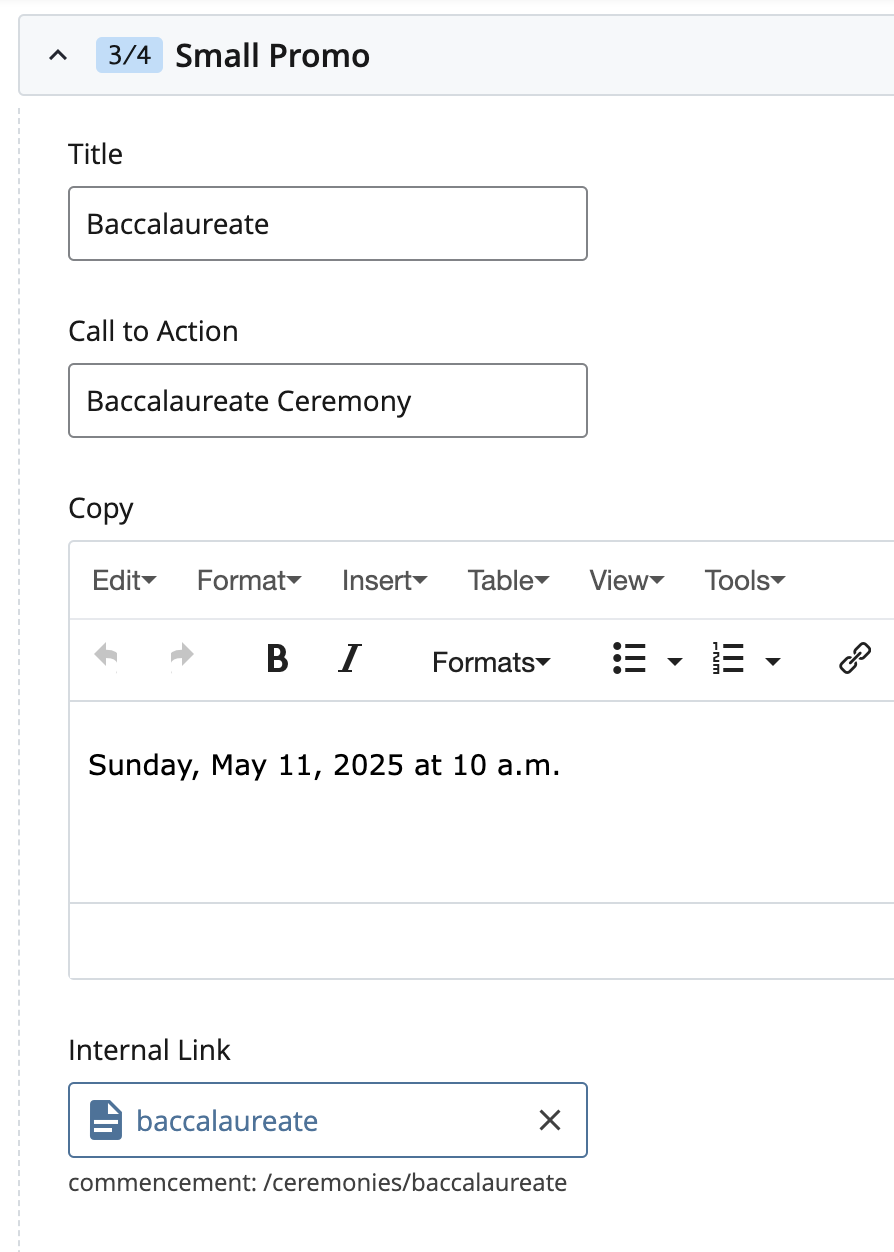
Enter text for the Title, Call to Action, and Copy fields. The title will appear first, followed by copy, Call to Action, and Copy (optional). Only the Call to Action is clickable, which can be programmed using the hyperlink options. For example:
-
Title: Baccalaureate
-
Copy: Sunday, May 11, 2025 at 10 a.m.
-
Call to Action: Baccalaureate Ceremony
A thumbnail image is required for Small Promos. Review Lead Media for guidance on how to upload and connect a thumbnail image using the image server.
Large Promos
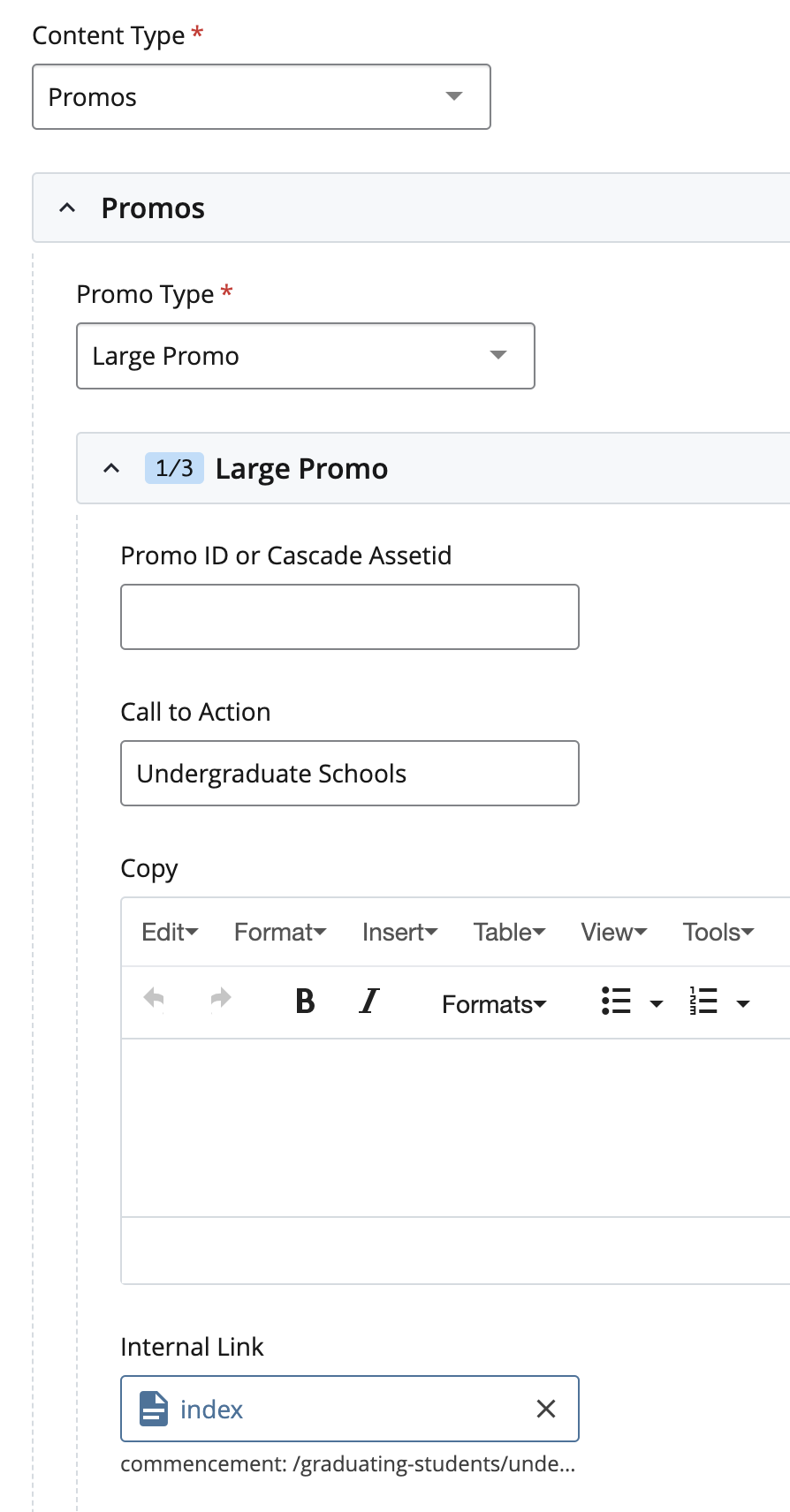
Enter text for the Title and Call to Action fields. Copy is optional, and seldomly used. The image will appear first, followed by the Title, and then the Copy. Copy appears without a red background color.
A promo image is required for Large Promos. Review Lead Media for guidance on how to upload and connect a thumbnail image using the image server.
Related Content
All of the promos available in the Main Content Region are also available for Related Content. The menus and fields are all the same. Button promos are most commonly used in this space.
Alternatively, use a Modular Content Row, which will appear beneath all of your page’s content. Follow the instructions above for Landing Pages.