Gateways
Gateways are an excellent wayfinding tool, helping visitors to your site navigate to pages on your site and on others’ sites. Unlike promo buttons, gateways have room for about a paragraph of text which helps provide context for your content. They are also a great way to showcase photography relevant to your site.

Creating a Gateway Row
Gateway rows are available on Landing Pages and Secondary Pages. One or multiple gateway rows can be added to a page at once. When multiple gateway rows are added, the promo image will alternate from the left side of the screen to the right on desktop. On mobile, the image always appears before the text and links.
A promo image is required for Gateway Rows. It is best to create and upload this image before building a gateway row, because Cascade will not allow you to save a draft without one. Follow our Lead Media guidance for further instructions.
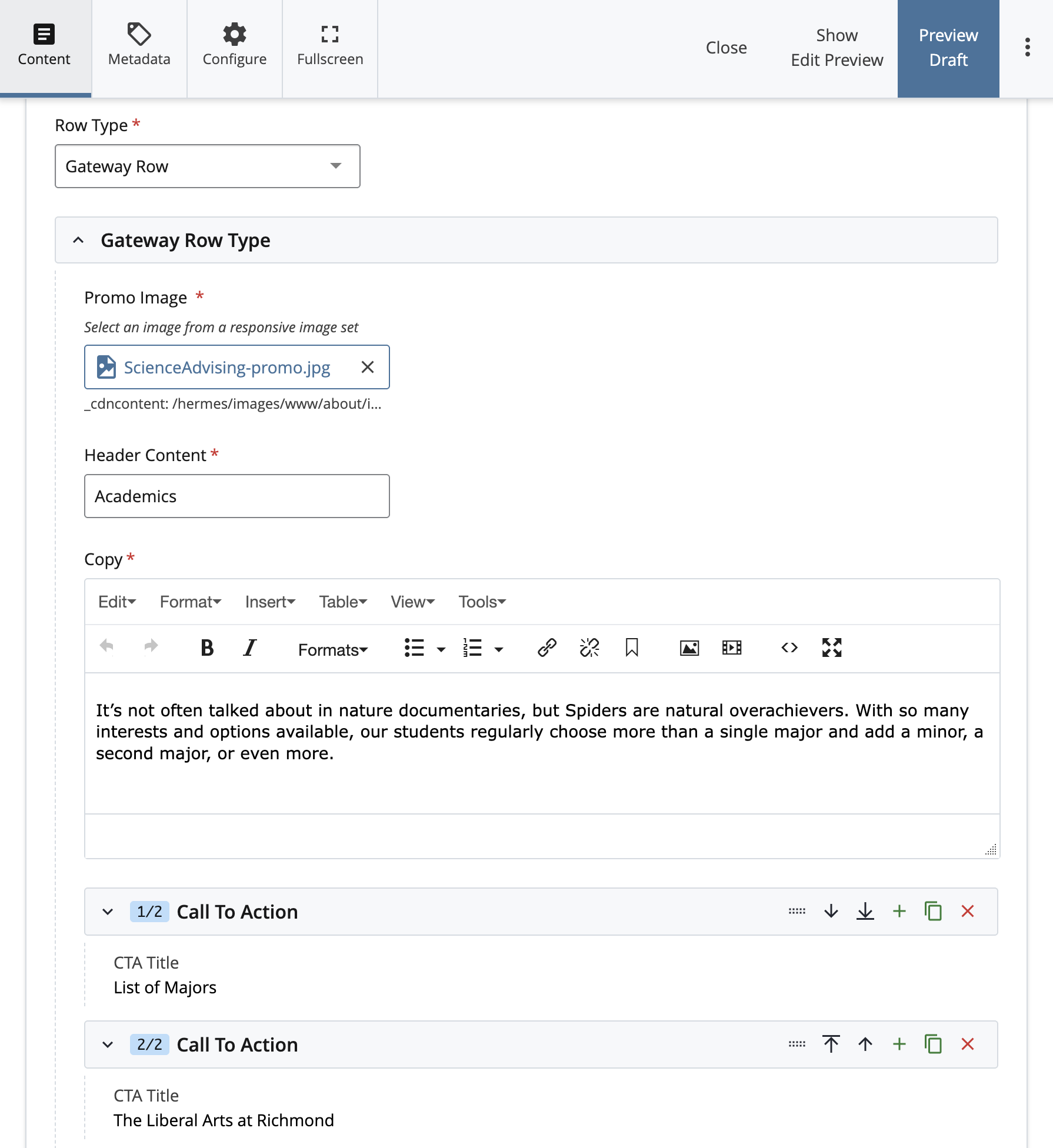
Image and Text
To build a gateway row, select “Gateway Row” under the Row Type menu. A Gateway Row Type menu will appear, and your first option will be to add a Promo Image. Click and select a responsive promo image from the _cdncontent image server. Next, fill out the Header Content and Copy fields with information about this link or group of links.
Call to Actions
Under the Call to Action menu, you can create a button using the CTA Title field and link options below. Selecting the + symbol allows you to create multiple Call to Action buttons for this individual row. We recommend adding no more than eight Call to Action buttons to prevent the row from becoming too tall.
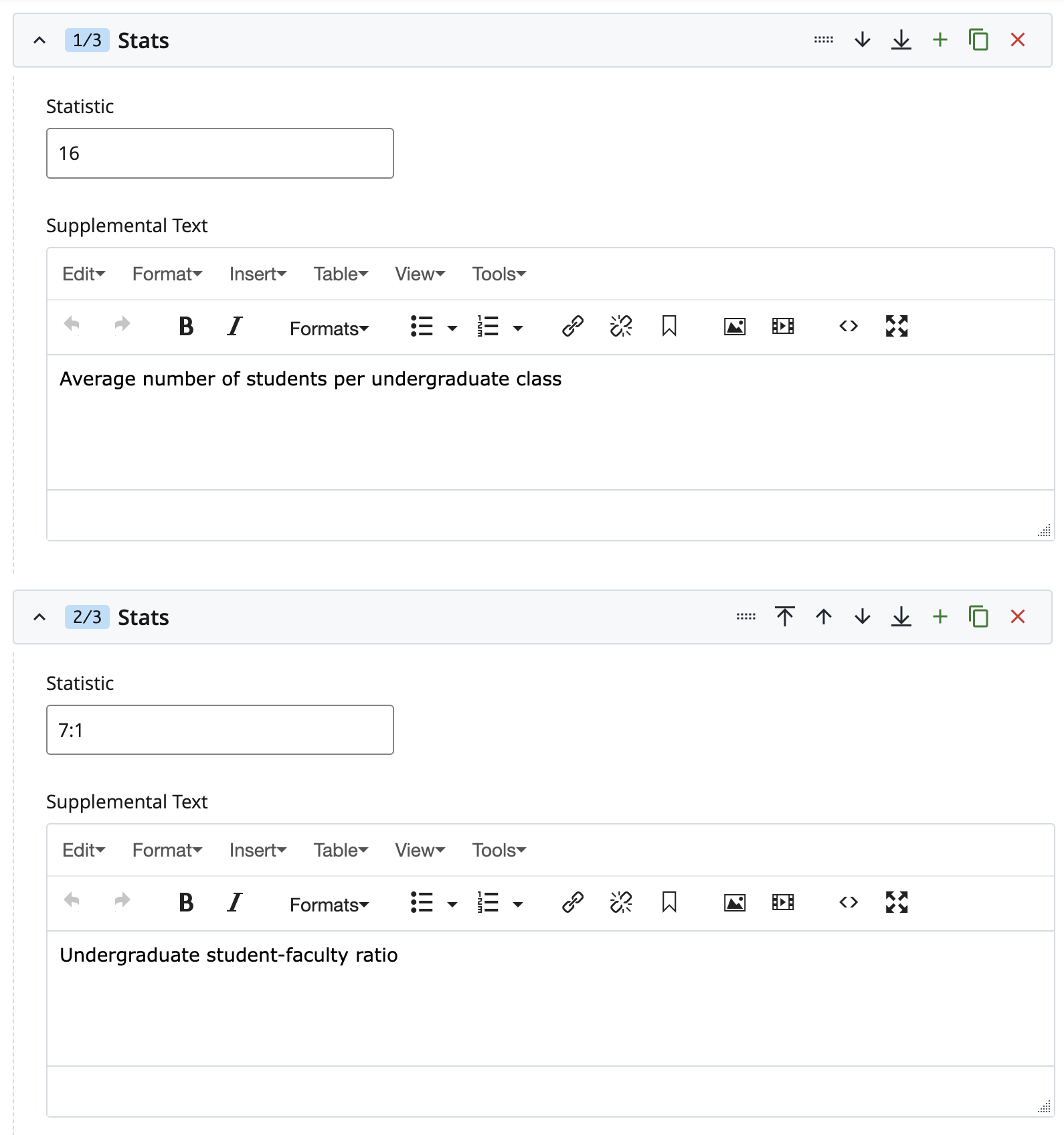
Statistics
There is also an option to add statistics which appear between the Gateway's copy and Call to Action buttons.
Under the Stats menu, add a number in the Statistic field with context beneath it in the Supplement Text field. You can multiple statistics—about 2-3 look best within this space.