Tables
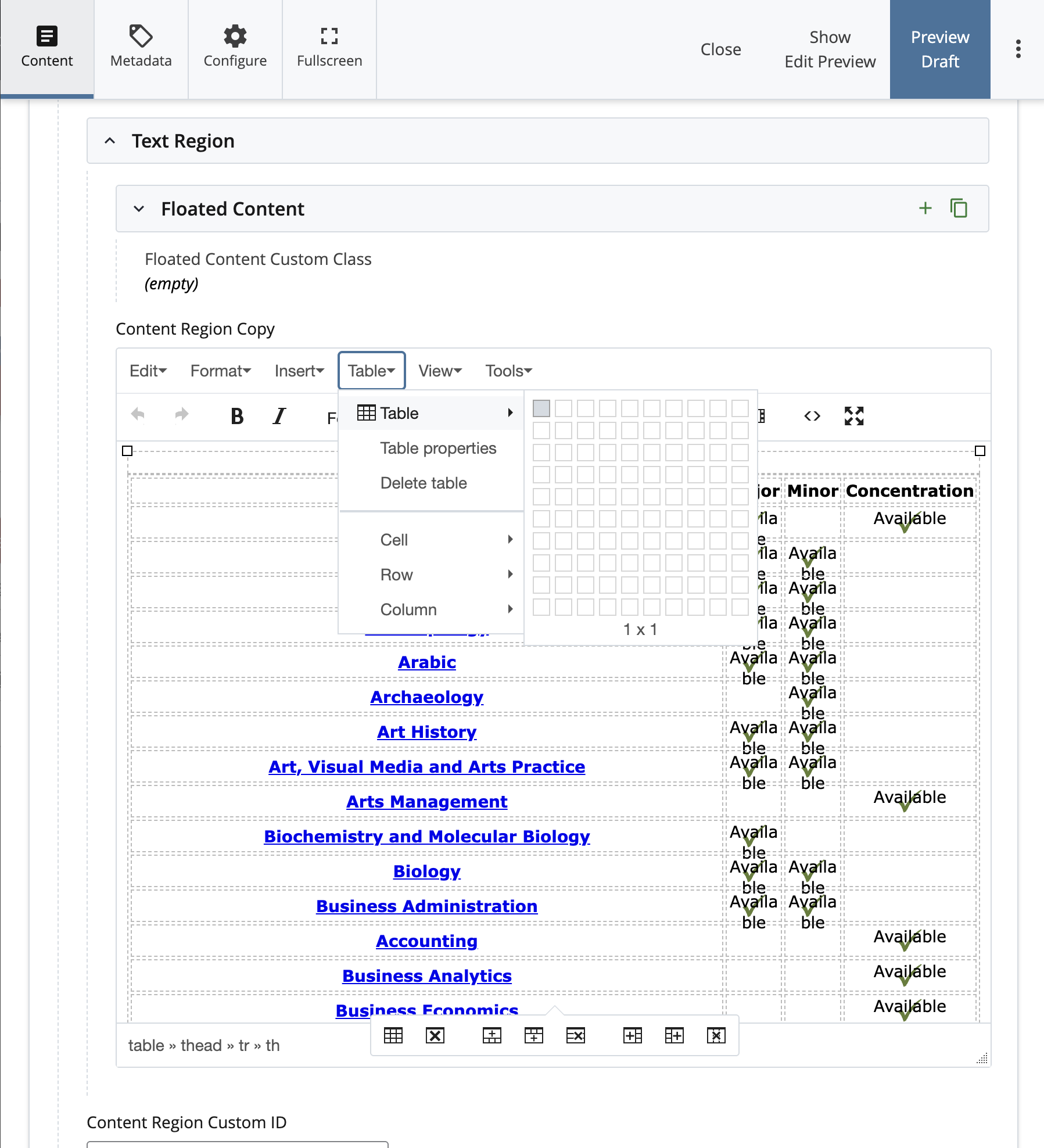
Tables are a useful mechanism for displaying information on your webpage that is especially detailed or comparative. They can be made using the rich text editor inside any Text Region on the webpage.
Creating a Table
To create a table, start by using the controls under the “Table” dropdown menu in the rich text editor. Under the “Table” option, you can select the size of your table using the grid that appears. Once selected, a table will appear in the text region below. By hovering over the table, you can resize the table as needed and begin inputting your content. For additional table edits, use the tools that appear below the table or use the Table dropdown menu above.
Making Your Table Accessible
While you’re creating a table, it is important to consider formatting it for accessibility so that the content inside the table is correctly understood by screen readers, as well as search engines and generative AI models. The primary need is for headers to be tagged appropriately within your table.
Creating Table Headers
Creating table headers is a two-step process where both the row and the cell have to be marked as a header. This is important for accessibility, and also freezes the row on mobile devices so that column headers remain on the screen, providing context while someone scrolls down the table.
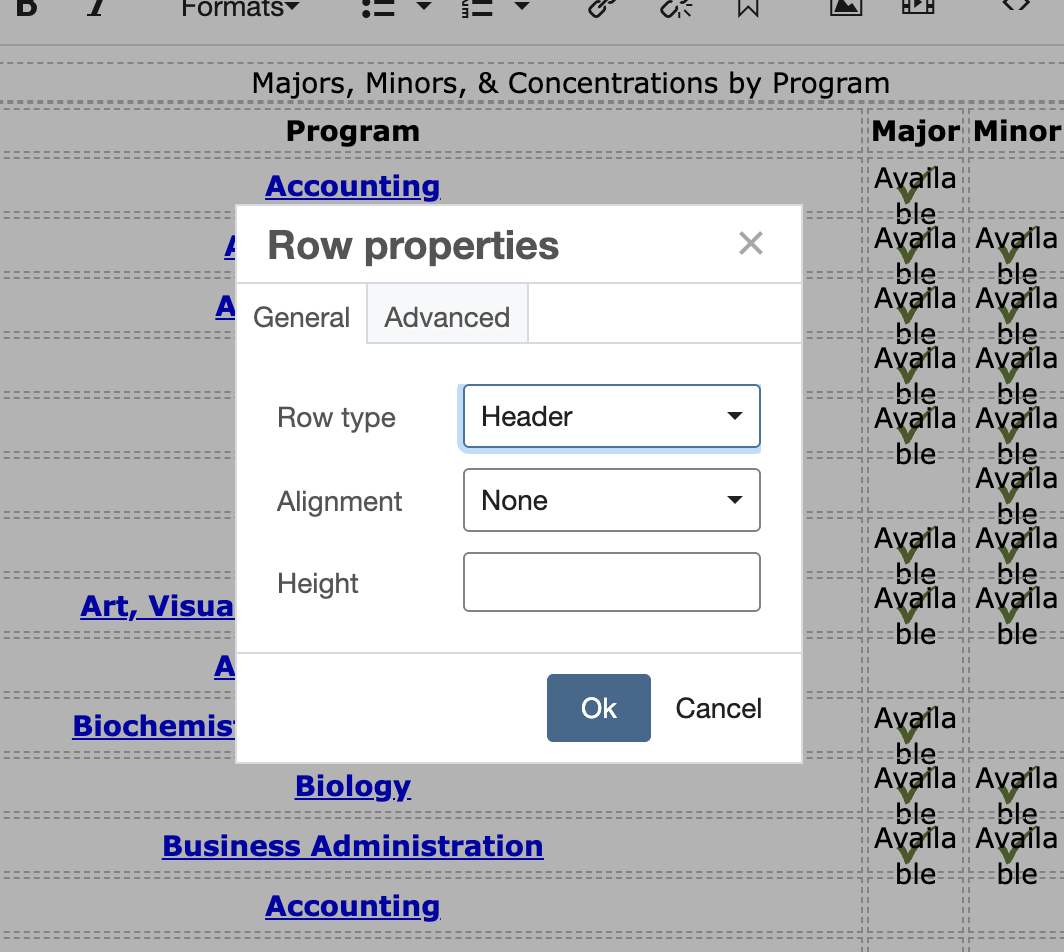
Begin by marking the first row at the top of the table as a header:
-
Select a cell in the top row of the title.
-
From the Table menu, select “Row” and then “Row Properties.”
-
In the window that appears, select “Header” under the Row Type menu.
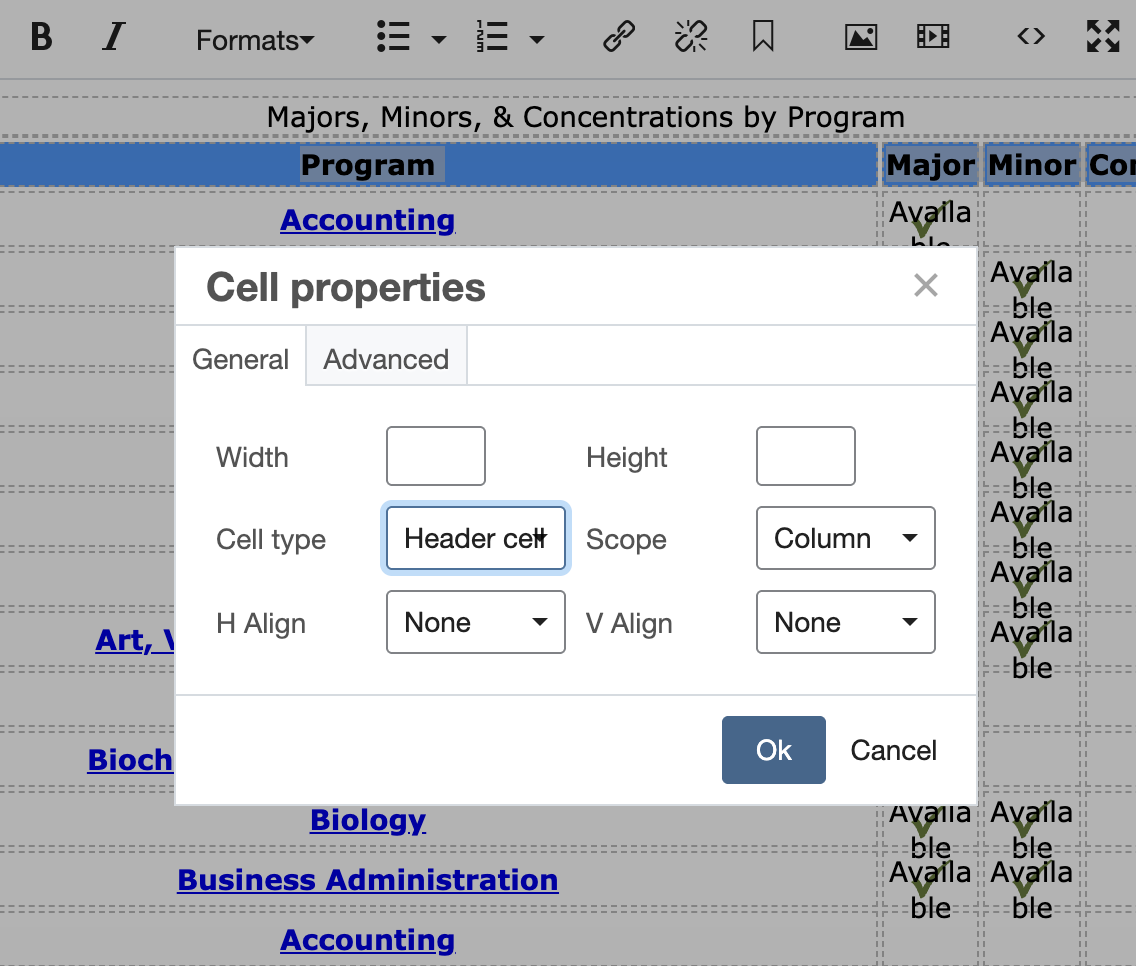
Next, mark all of the cells in the row as column headers:
-
Select all of the cells in the row.
-
From the Table menu, select “Cell” and then “Cell Properties.”
-
Under Cell Type, select “Header Cell.”
-
Under Scope, select “Column.”
The option to freeze content in a table also extends to columns. This is especially helpful for mobile devices when your table has more than 2 or 3 columns, providing context as someone scrolls from left to right. To do this, follow the above steps for marking cells as column headers, and instead of “Column,” select “Row” as the Scope.
Avoid using empty cells as they can confuse generative engines and accessibility software. Also avoid using symbols or abbreviations for data, as their meaning will be less clear to generative engines and/or accessibility software.