Hyperlinks
There are two types of hyperlinks: Internal and External.
An internal hyperlink is a link to pages or assets within your site only. For these, it is best to select None as your link target. While you may be able to view other richmond.edu sites, links to them from your site are actually external links.
An external link is a link to a site outside richmond.edu or to a PDF document. It is best to select New Window as your link target.
Accessing Hyperlinks

- While in Edit mode on your page, select the text (click and drag) that you would like to convert to a hyperlink.
- Click the Insert/edit link button on the toolbar.
- Select the link type: Internal or External
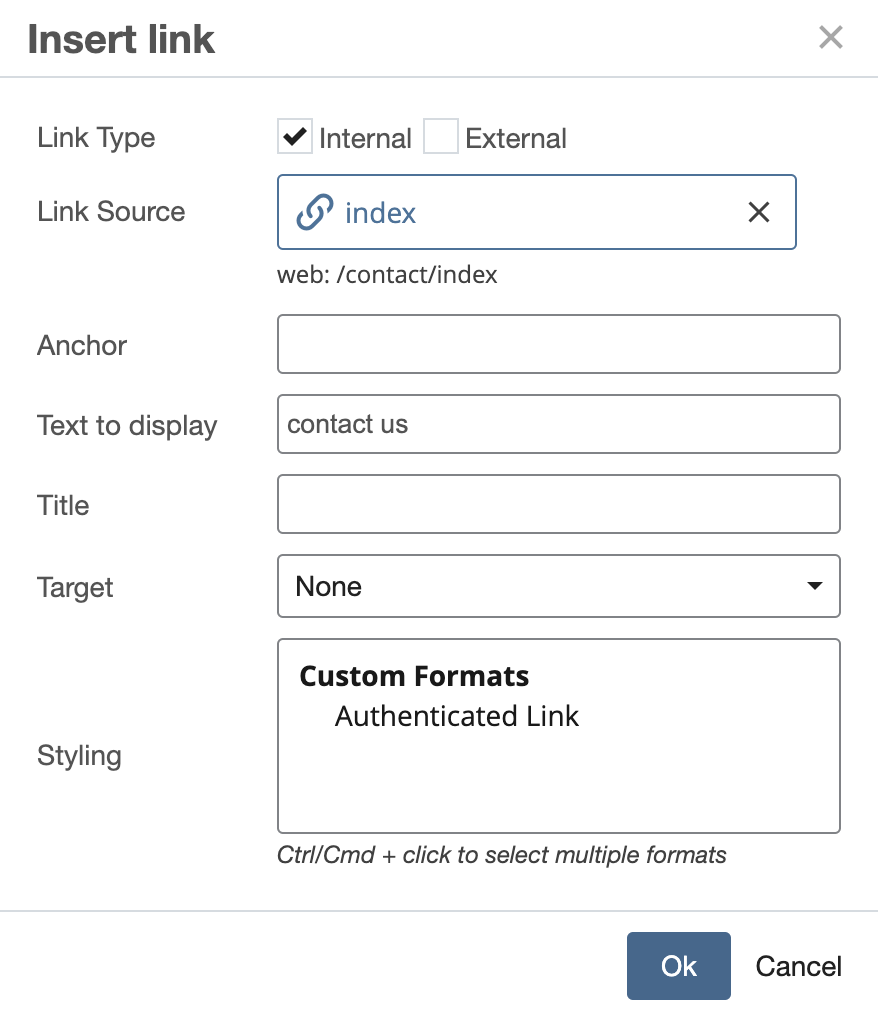
Internal Links
- Select the Choose a File, Page or Link button and navigate to file, page or link you want to use.
- Select the Choose button. The dialog box closes and the confirmed path is displayed under the Link Source box.
- Select your Target from the Target drop down list.
- Select New window for PDFs (even those within your own website).
- Otherwise, select None for your internal webpages.
- Select the OK button.
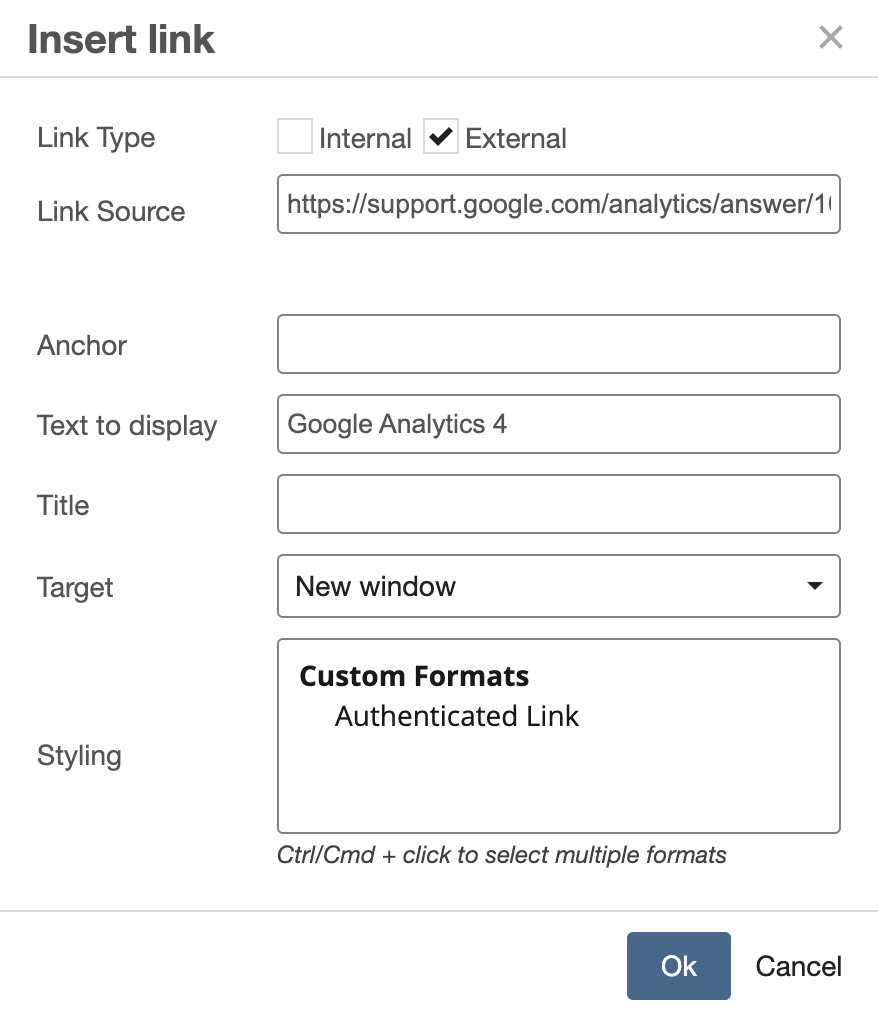
External Links
- Enter the complete URL (including the 'https://') of the web site that you wish to link to in the Link Source box.
- Select your Target from from the Target drop down list.
- Select New window for any webpages linked outside of richmond.edu (for instance, another university or a news publication).
- Or, select None for any richmond.edu webpages (such as another University website).
- Select the OK button.